
In e-commerce, standing out among competitors is a continuous challenge. Google Shopping Ads offer a powerful solution for retailers looking to boost product sales and enhance their online visibility. This step-by-step guide will help you navigate the process of setting up and optimising Google Shopping Ads to drive more sales and grow your business.




Key Insights
Google Shopping Ads are an effective tool for increasing product sales, providing a visual and highly engaging way to attract potential customers. Here are key statistics and insights to help you create a successful Google Shopping Ads campaign:-
Effectiveness and Reach
:
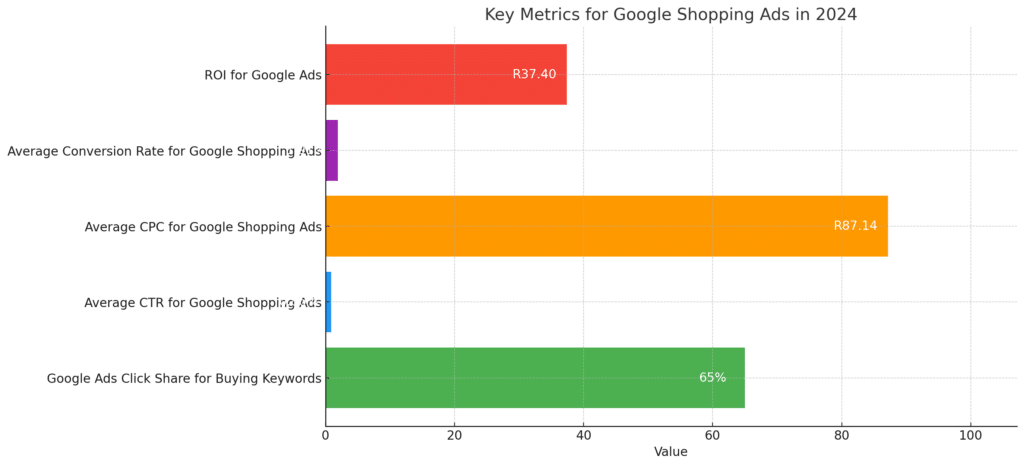
- Google Ads results receive 65% of clicks for buying keywords compared to 35% for organic results. This highlights the importance of paid ads in driving sales.
- The average click-through rate (CTR) for Google Shopping Ads is 0.86%, which, while lower than standard search ads, still represents a significant volume of traffic given the visual nature of these ads.
-
Cost and ROI
:
- The average cost per click (CPC) for Google Shopping Ads is $4.66, varying by industry. For example, the CPC for the apparel industry is around $3.39, while for legal services it’s higher at $8.94.
- Google Shopping Ads offer a strong return on investment (ROI). Businesses typically see a $2 return for every $1 spent on Google Ads.
-
Conversion Rates
:
- The average conversion rate for Google Shopping Ads is 1.91%, which, although lower than the average for standard Google Ads, is offset by the generally lower CPC.
-
Campaign Setup and Optimisation
:
- Setting up a Google Shopping campaign involves several steps: creating a Google Merchant Center account, optimising product images and listings, collecting and inputting product data feeds, linking Google Ads and Merchant Center accounts, and creating the actual shopping campaign.
- Effective use of negative keywords can improve campaign performance by preventing ads from appearing for irrelevant search queries, thereby optimising ad spend.
- Running separate campaigns for branded and non-branded products can help better allocate budgets and control bids, improving overall campaign efficiency.
-
Targeting and Bidding Strategies
:
- Advanced targeting options allow advertisers to reach specific demographics, including age, gender, location, and interests, enhancing ad relevance and performance.
- Bidding strategies like manual CPC or automated bidding can be employed to manage ad spending effectively. Google’s Bid Simulator Tool can help visualise the impact of bid changes on performance.
-
Enhancing Ad Performance
:
- Importing product reviews into Google Merchant Center can add credibility to ads and increase click-through rates. Product titles and images play a crucial role in ad visibility and should be optimised to attract clicks.
- Regularly reviewing and optimising the product feed and ad performance data ensures that ads remain relevant and effective.
1. Set Up Your Google Merchant Center Account
Before you can create Google Shopping Ads, you need a Google Merchant Center account. This platform allows you to upload your product data, making it available for Google Shopping and other Google services.Steps:
- Go to Google Merchant Center and sign in with your Google account.
- Enter your business information, including your business name, website URL, and country.
- Verify and claim your website URL by following Google’s instructions. This typically involves adding an HTML file to your website or using Google Analytics.
2. Create and Optimise Your Product Feed
Your product feed is a file that contains detailed information about your products. It’s crucial to ensure your feed is accurate and up-to-date, as this data will be used to create your Shopping Ads.Steps:
- Navigate to the "Products" section in the Merchant Center and select “Feeds.”
- Click on the plus icon to create a new feed, and choose your target country and language.
- Upload your product feed file. Google supports various formats, but a common one is a Google Sheets template.
- Ensure all required fields are filled, including product ID, title, description, link, image link, price, availability, and condition. Use high-quality images and clear, concise descriptions to attract potential customers.

3. Link Your Google Merchant Center to Google Ads
To run Shopping Ads, you must link your Merchant Center account to your Google Ads account.Steps:
- In the Google Merchant Center, go to the “Settings” section and select “Linked Accounts.”
- Click “Link Account” and enter your Google Ads Customer ID.
- Confirm the link in your Google Ads account under “Tools and Settings” > “Linked Accounts.”
4. Create a Google Shopping Campaign
Now that your accounts are linked and your product feed is ready, you can create a Shopping campaign in Google Ads.Steps:
- Sign in to your Google Ads account and click on “Campaigns.”
- Click the plus icon to create a new campaign and select “Shopping” as the campaign type.
- Choose your linked Merchant Center account and select your target country.
- Set your campaign goal (e.g., sales or leads) and define your budget and bidding strategy.
5. Organise Your Product Groups
Google Shopping campaigns allow you to organise your products into groups. This structure helps you manage your bids more effectively and optimise your campaigns based on performance.Steps:
- Within your Shopping campaign, go to the “Ad groups” tab and create a new ad group.
- Select “Product Shopping” as the ad group type.
- Divide your products into groups based on categories, brands, or custom labels. This will allow you to set different bids for different product groups.
6. Monitor and Optimise Your Campaign
Regular monitoring and optimisation are crucial for the success of your Google Shopping Ads. Use Google Ads’ reporting tools to track key metrics such as impressions, clicks, conversions, and ROAS. Tips:- Adjust Bids: Increase bids for high-performing products and decrease bids for low-performing ones.
- Negative Keywords: Add negative keywords to prevent your ads from showing for irrelevant searches, which can save budget and improve targeting.
- Product Feed Optimisation: Continuously update and refine your product feed to ensure accuracy and relevancy. Include seasonal keywords and promotional offers to attract more customers.